Shadowrocket Setup Guide:
Import a Subscription and Test the Connection
Work through the steps in order: add or import, choose a routing mode, connect, verify, and troubleshoot. First establish a repeatable connection, then adjust rules or automatic connection settings.
If a server entry is already listed, continue from Step 2. If the app shows a connection but you cannot browse, go straight to Steps 4 and 5.
Add Server: Add a Server or Import a Subscription
First, determine whether you have a subscription link or a set of server parameters. A subscription imports server entries in bulk and can be used to update them later. Manual setup adds one server at a time. Choose either method; there’s no need to enter the same details twice. Subscription URLs often contain access credentials, so use them only on your own devices and in trusted input fields. Don’t share the full URL when troubleshooting.
Manual Setup: Enter the Fields for Your Type
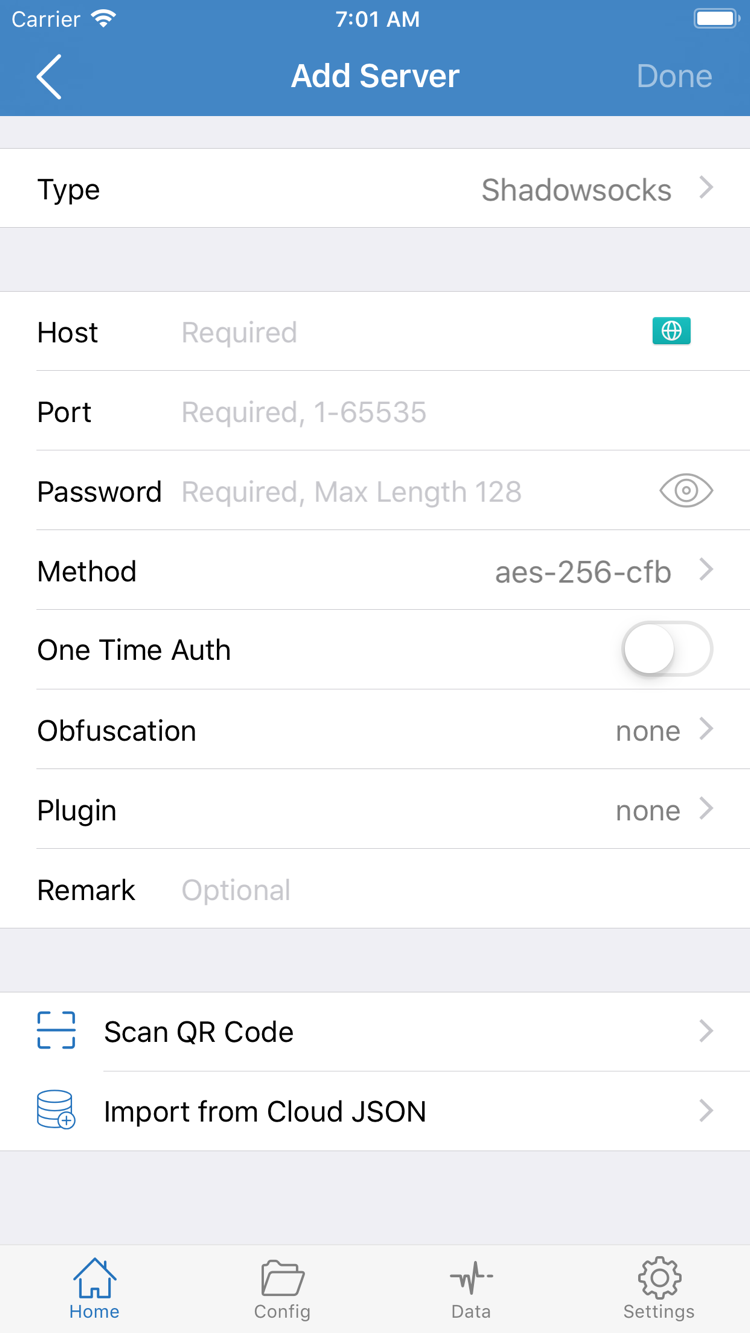
Open Home in Shadowrocket and select Add Server in the SERVER section, or use the add button on the screen. Tap Type and select the protocol that matches your server details. Enter Host and Port, then fill in Password, Method, or other authentication and transport fields required for that type. The fields shown in the official screenshot apply only to the selected Type; protocols don’t all use the same parameters.
Host is usually the server’s domain name or IP address; enter the port provided in your details in Port. Don’t paste a subscription URL with a path into Host, or enter a password in Method. If your details include TLS, a server name, or a transport path, enter each value as provided. If you’re unsure about a field, check with the source rather than guessing. Save using the button in the upper-right corner, then return to Home and confirm the entry appears under SERVER.
Import a Subscription: Choose Subscribe and Save
If you have your own subscription link, select Subscribe under Type in Add Server. Enter the full address in the URL field and add a label to identify it. Check for extra spaces, line breaks, or copied chat text at either end. Preserve the address’s capitalization, parameters, and symbols. Save and wait for it to load, then return to Home and check that the subscription group and its server entries appear.
A Subscribe URL and a Config file URL serve different purposes. The former typically provides server entries; the latter contains rules and configuration. Don’t use them interchangeably just because both are links. If the list is empty after import, first confirm the source’s format and purpose, then check that the subscription is valid. Changing Global Routing won’t turn an incorrectly formatted link into a server list.
Scan QR Code at the bottom of the screen scans compatible QR codes. Import from Cloud JSON is for the corresponding cloud JSON import flow; neither is a general-purpose entry point for any subscription. Before using either option, confirm that your details match the import method. After importing, select the entry you want to use under SERVER on Home, confirm it is selected, and continue.
You’re done with this step when a recognizable entry appears under SERVER, the required fields are saved, and one entry is selected. For protocol field definitions, see the Glossary.
Global Routing: Choose Config, Proxy, or Direct
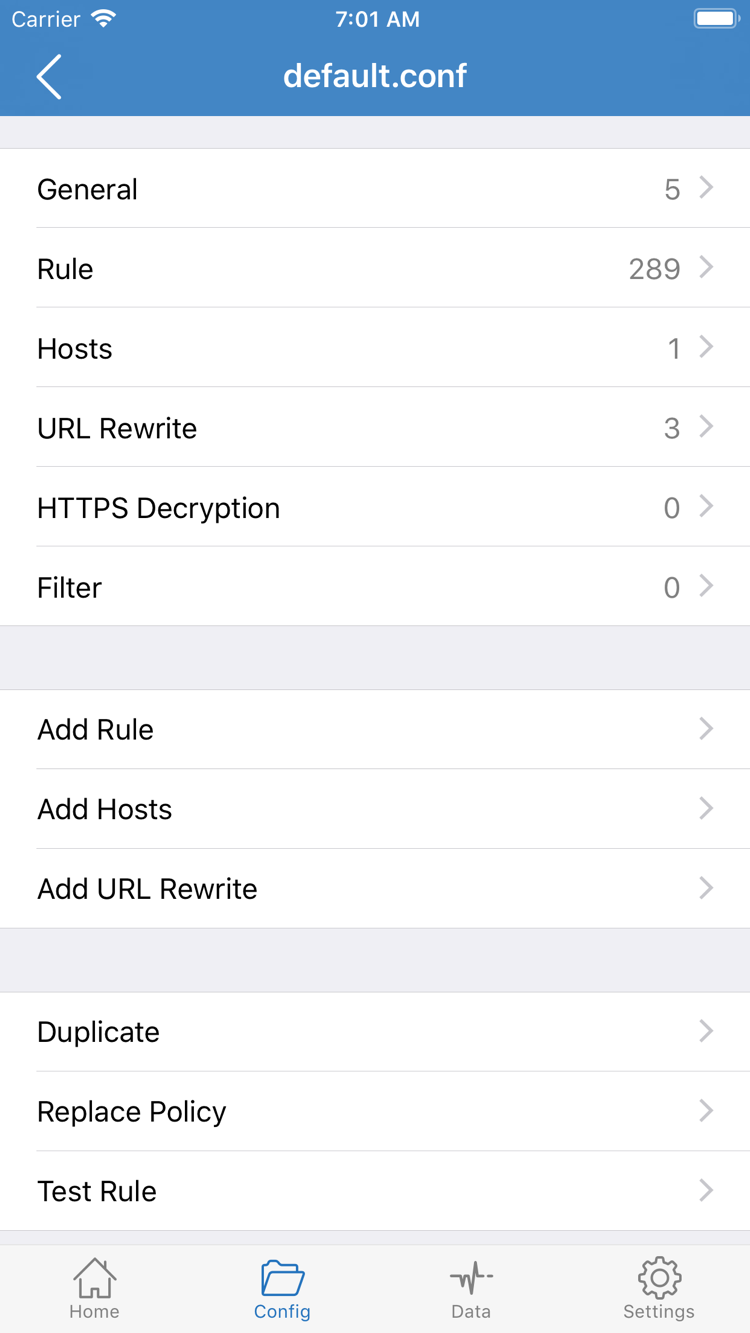
A server entry determines which connection to use; Global Routing determines how traffic is handled. After importing, return to Home, open Global Routing, and choose Config, Proxy, or Direct to suit your needs. Changing the routing mode doesn’t replace server details or fix invalid authentication credentials.
Config: Apply the Current Rules
Choose Config for everyday rule-based routing. Then open Config to confirm which configuration file is active and review its Rule content. Seeing a file in the editor doesn’t necessarily mean it’s the active configuration; after saving changes, check which file is selected in the list. Successfully importing a server subscription doesn’t mean you also have a rules file suited to your needs.
Rules are checked from top to bottom; the first matching rule determines the policy. More specific conditions should generally come before broader ones, with FINAL at the end to handle remaining requests. The example below shows how to route a specified domain through PROXY and everything else through DIRECT; it isn’t a complete configuration to import. The domain is for illustration only. Adjust it for your needs and keep a copy of your original configuration.
[Rule]
DOMAIN-SUFFIX,example.com,PROXY
FINAL,DIRECT
This example routes example.com and its subdomains through PROXY. FINAL,DIRECT handles other traffic that doesn’t match. PROXY, DIRECT, and REJECT are policy keywords, not server names to enter. When troubleshooting, check rule order, the active file, and the current routing mode; a rule appearing in the file doesn’t guarantee that it’s taking effect.
Proxy and Direct: Compare Traffic Handling for Specific Tests
Proxy sends general traffic through the selected proxy, making it useful for checking whether a problem is related to rule selection; it doesn’t guarantee that the server is available. Direct connects general traffic straight to its destination. It can serve as a baseline for your network, but it doesn’t confirm that the selected server is reachable. Actual handling may also depend on exceptions in the app’s settings.
For your first run, there’s no need to change General, Hosts, URL Rewrite, or HTTPS Decryption. Confirm that the current configuration routes traffic as expected, then connect. If you temporarily switch to Proxy or Direct for testing, note the original mode and restore it afterward so you don’t mistake the changed mode for a broken rule next time. For details on rule keywords, see the Glossary; for a systematic approach, see Troubleshooting.
You’re done with this step when you know the current Global Routing mode. If you chose Config, confirm the active file and its fallback policy.
Home: Turn On the Not Connected Switch
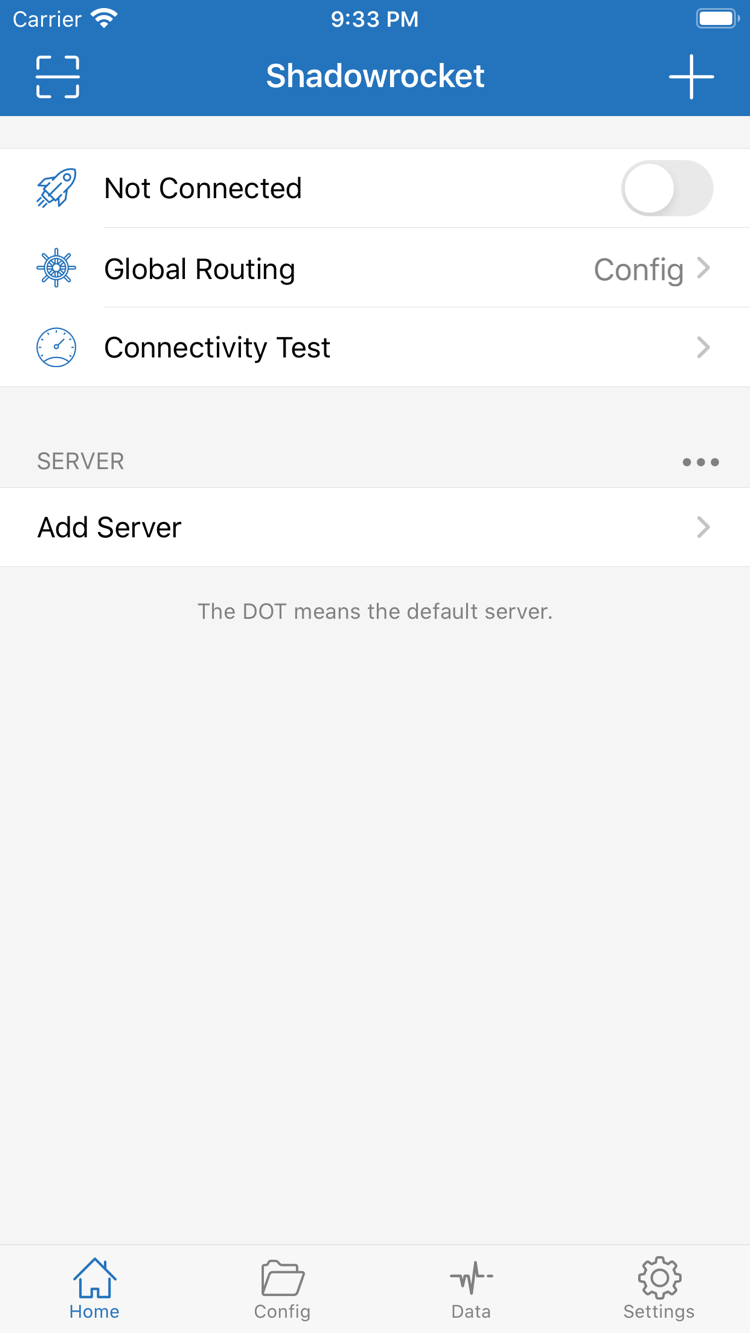
After selecting a server and setting Global Routing, return to Home. Check that the selected entry under SERVER is the one you intend to use, then check the displayed Global Routing mode. The status at the top may still say Not Connected; this means the connection hasn’t started, not that the import failed.
Allow the VPN Configuration on First Connection
Turn on the connection switch at the top. The first time you connect, the system asks whether to allow a VPN configuration to be added. Confirm that the request is for Shadowrocket, allow it, and complete any required device passcode or biometric authentication. This authorization lets the system establish a local VPN tunnel and pass traffic to the app for handling. It isn’t a server account and won’t supply missing subscription or authentication details.
If you previously denied authorization, return to the app and try connecting again, following the system prompts. On managed devices or devices with system restrictions, permission to add a configuration depends on device management policies. Check that the device allows this action. Don’t remove management configurations unless you know what they’re for; if you’re unsure, stop before making changes.
Wait for the Status to Change Before Testing
After authorization, return to Home and check that the status and switch at the top remain stable. The system status area may also show a VPN indicator; its location varies by device. A steady connection indicates that the system tunnel is established, but doesn’t confirm that the selected server, DNS, or every destination has been verified. Continue with a real-world access test.
If the switch quickly turns off again, note the error and when it occurred: before authorization, after authorization, or during the connection attempt. If another VPN connection is active on the device, disconnect it and test Shadowrocket on its own to reduce interference. Don’t repeatedly tap the switch or change several settings while connecting.
For now, leave the current On Demand settings unchanged and complete a manual connection first. If the connection starts again automatically after you turn it off, check the On Demand conditions in Step 5. Once the switch stays on, run Connectivity Test and try browsing; a VPN indicator alone isn’t enough to confirm everything is working.
You’re done with this step when system authorization is complete, the connection status on Home is stable, and you know which server and routing mode are in use.
Connectivity Test: Test First, Then Browse
With the connection on, tap Connectivity Test on Home and wait for the test to finish. The result can indicate whether the selected entry responds using the current test method; it isn’t a complete website access test and doesn’t prove that a particular rule matched. Check the selected entry first, then other entries, so you don’t mistake another entry’s result for the current connection’s result.
Check the Test Conditions Before Interpreting Results
Connectivity Test results depend on Test Method in Settings, the current network, and whether the server supports that test method. A timeout doesn’t necessarily mean all real requests will fail. A successful test doesn’t guarantee that all app traffic, UDP, or every destination is available. To compare results, keep the network, server entry, and test method the same; don’t treat values from different conditions as a direct measure of performance.
Test Two Types of Destinations
Next, open a browser and visit a destination you’re authorized to use that is expected to go through PROXY, then one expected to go through DIRECT. With Config selected, choose test destinations based on the current rules rather than opening a random page. Under the example rules above, only requests matching example.com use PROXY; successful access to another destination via Direct doesn’t confirm that the proxy server is working.
If Data or another request log in the app shows how a request was handled, check the destination domain, time, and policy. Available details depend on what the app displays. Page load speed alone can’t tell you which route a request used. Some pages make requests to additional domains, so check the specific failed request rather than only the address you entered.
For a simple comparison, temporarily switch Global Routing from Config to Proxy, keep the same server, and reload the same destination. If it works with Proxy but fails with Config, first check the rules, active file, and DNS. If both fail, recheck your server details and basic network connection. Restore the original routing mode when the test is complete.
You’re done with this step when the connection switch is on and you can reproduce the access result under known conditions, then judge whether it matches the current routing mode and rules.
Settings and Common Issues: Troubleshoot by Stage
First identify whether the failure occurs during import, while establishing a connection, or when browsing after connecting. Each stage has different checks: for a subscription import failure, check the URL; if the switch won’t stay on, check authorization; if only some destinations fail, check rules and DNS. This guide covers the basics. For problems involving multiple settings or persistent issues, continue with the Complete Troubleshooting Guide; you don’t need to review every advanced option when getting started.
Import Fails or SERVER Has No Entries
Check that the subscription URL is complete, still valid, and intended for server subscriptions. If you see a network or certificate error, first check that the current network can reach the subscription URL and that the device’s date and time are correct. Don’t paste the full URL into a public search or screenshot. If you contact your service provider, share only the necessary error details and hide your credentials.
If a manually added server won’t work, return to Add Server and check Type, Host, Port, and authentication fields. A password that looks correct may still have a leading or trailing space. A mismatched port, encryption method, or TLS setting can also prevent a connection. Save any corrections, return to Home, select the entry again, and test it so you don’t keep using an old entry.
The Switch Won’t Turn On, Disconnects, or Reconnects Automatically
First confirm that VPN configuration authorization is complete, then check whether another VPN connection is active. If the connection starts again after you turn it off manually, check the On Demand status and trigger conditions in Settings. On Demand controls when to connect automatically; it’s separate from how traffic is routed after connecting in Config. Note the original settings before making changes, then restore them when you’re done troubleshooting.
If the problem appears only after switching between Wi-Fi and cellular, test each network separately rather than assuming the app is at fault. Keep the current configuration and server entry, change only the network, and see whether the same destination behaves consistently. This helps distinguish network differences from incorrect server settings.
Connected but Can’t Browse, or Only Some Destinations Fail
First check the basic network by opening a known working site, then review the selected server and Global Routing mode. If Proxy works but Config doesn’t, check the active configuration, rule order, and FINAL first. If only a few domains fail, check DNS resolution and the related requests. Don’t start by changing DNS, TCP, UDP, and all transport settings at once.
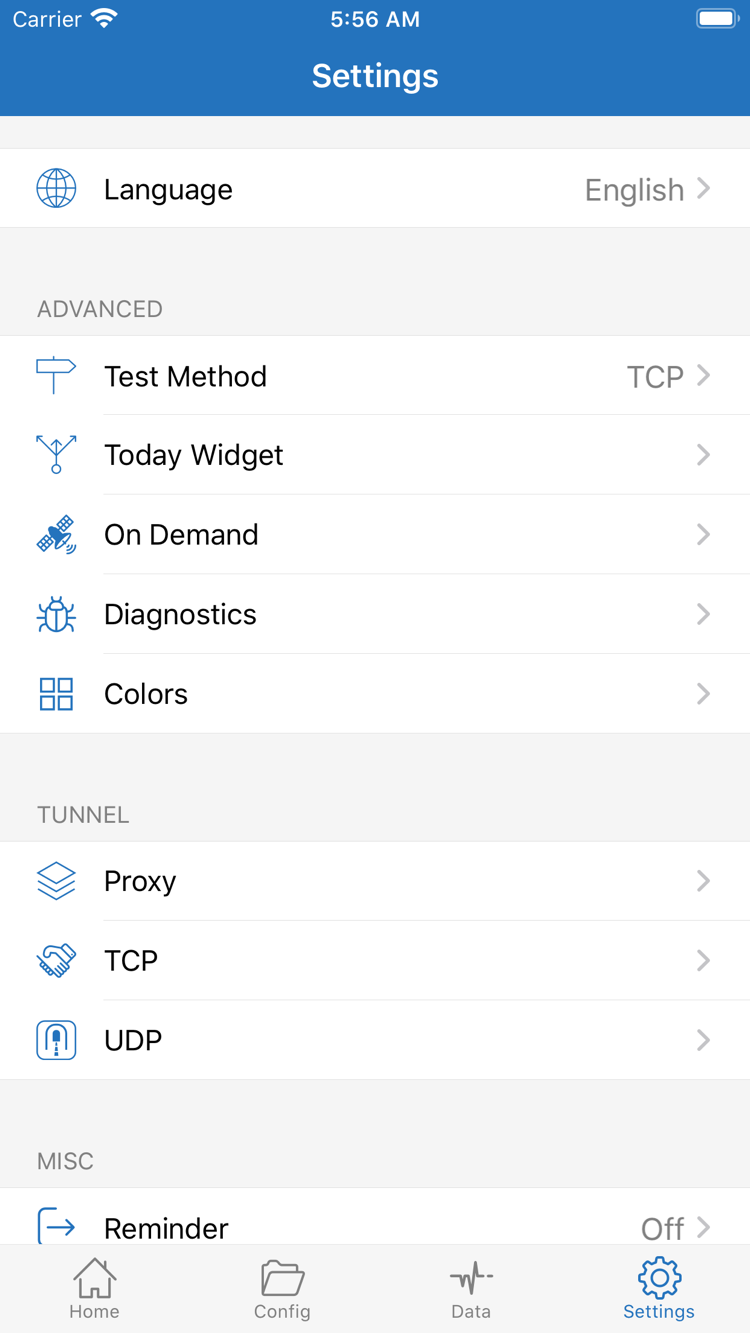
Test Method in Settings helps explain the conditions used by Connectivity Test. Diagnostics may provide clues when troubleshooting. Options such as Proxy, TCP, and UDP affect more specific behavior; when getting started, leave their existing values unchanged. Before sharing diagnostic information, check for subscription URLs, server details, or browsing records, and include only what’s needed to troubleshoot.
If a server entry disappears after a subscription update, return to SERVER and confirm which entry is selected. If a problem starts after editing the configuration, first restore the saved previous version and retest the same destination. Restore the baseline, change one setting, and test again; this is usually more effective than adding changes on top of one another.
That completes the getting-started flow. For interface terms, see the Glossary. For persistent timeouts, DNS issues, battery drain, or problems after an update, follow the relevant steps in Troubleshooting.
Keep a Working Configuration and Continue Learning as Needed
Before you finish, check three things: the expected entry is selected under SERVER, Global Routing is set to the mode you plan to use, and real-world access matches the rules. Keep the working configuration. After future changes, retest the same destinations to help identify what changed.
To learn about automatic connections, protocols, and configurations, read the Feature Guide. For rules that route only selected websites through PROXY, see How to Route Selected Websites.