Get Shadowrocket
App Store Purchase Guide
- Developer: Shadow Launch Technology Limited
- App ID:
932747118 - US price: $2.99 · One-time purchase; check the App Store listing
- For iPhone and iPad; check the App Store listing for availability
Shadowrocket is a paid app with a one-time purchase, available only on the App Store. First check your storefront, then verify the developer, official icon, and app ID. After purchasing, configure the app with your own existing subscription or server details.
App Store and account region: check availability first
Shadowrocket is not available on the mainland China App Store. If you can't find it, first check the region of the App Store account in use; don't rely on your device language or current location. Your Apple ID country or region determines which storefront you see. The account used for iCloud may differ from the one used for Media & Purchases, so check purchase history with the latter.
To check your region, go to Settings → Apple ID → Media & Purchases → View Account → Country/Region. You may need to authenticate first. Once you've confirmed the region, open the App Store product page on this site and check the availability shown by the store. The storefront path in a page URL does not change your account region, and opening a link to another storefront does not change your account settings.
To change your region, use the option provided under “Country/Region” and review each prompt. Your account balance, active subscriptions, Family Sharing status, or payment details may affect whether you can proceed; follow the requirements shown on your account page. This manual explains where to find the setting but cannot guarantee that a change will be available for every account. If you haven't checked the requirements, there's no need to keep changing account details to retry.
Before buying, make sure your payment method works with the current storefront, your device has enough free storage, and it meets the compatibility requirements on the product page. If the page says the app is unavailable, a payment is declined, or verification is required, note the exact message first. Then determine whether the issue is with the store, account, or device. You haven't reached Shadowrocket's connection setup yet, so there's no need to change Global Routing or server settings.
Verify the official app: developer, icon, and app ID
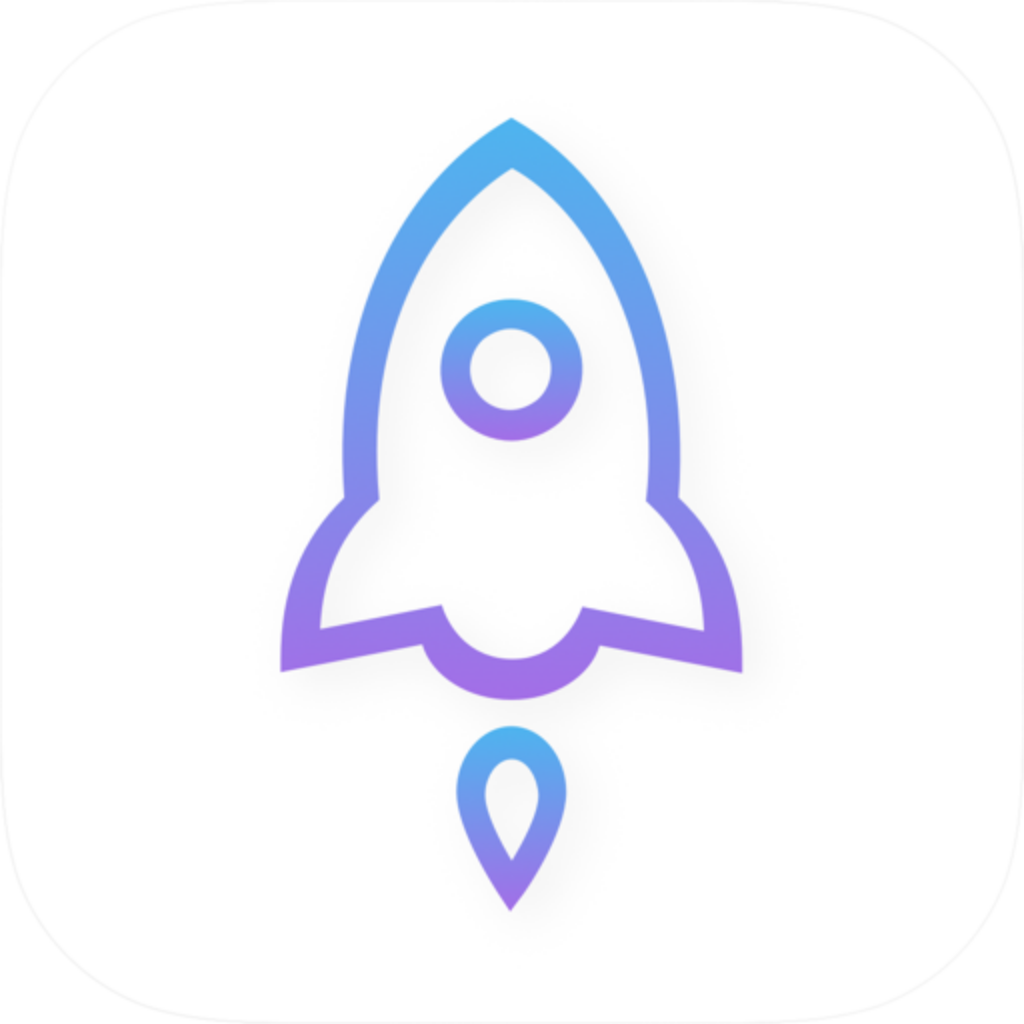
Shadowrocket
Official App Store app icon
Search results may include apps with the same or similar names. A nickname in Chinese does not verify an app’s identity. Open the product page and check all three details below together—not just the name, search ranking or a similar-looking icon.
- The developer is Shadow Launch Technology Limited. Check the developer or provider information on the product page and verify the full English name. Promotional text and search-result descriptions are not a substitute for the developer field.
- The icon is a rocket outlined in blue and purple on a white background. Compare its shape and colors with the official icon on this page. The icon is only one part of the verification; still check the developer and app ID.
- The app ID is 932747118. The product URL linked from the App Store button on this page contains
id932747118. The app ID is a fixed product identifier, not a version number or purchase order number.
Once all three details match, check the price, compatibility, and purchase button. If any detail differs, return to the product link on this page and verify it again. Don't mistake a purchase of a different app for a Shadowrocket purchase; similar names do not mean purchases are interchangeable.
Use official screenshots to identify the interface
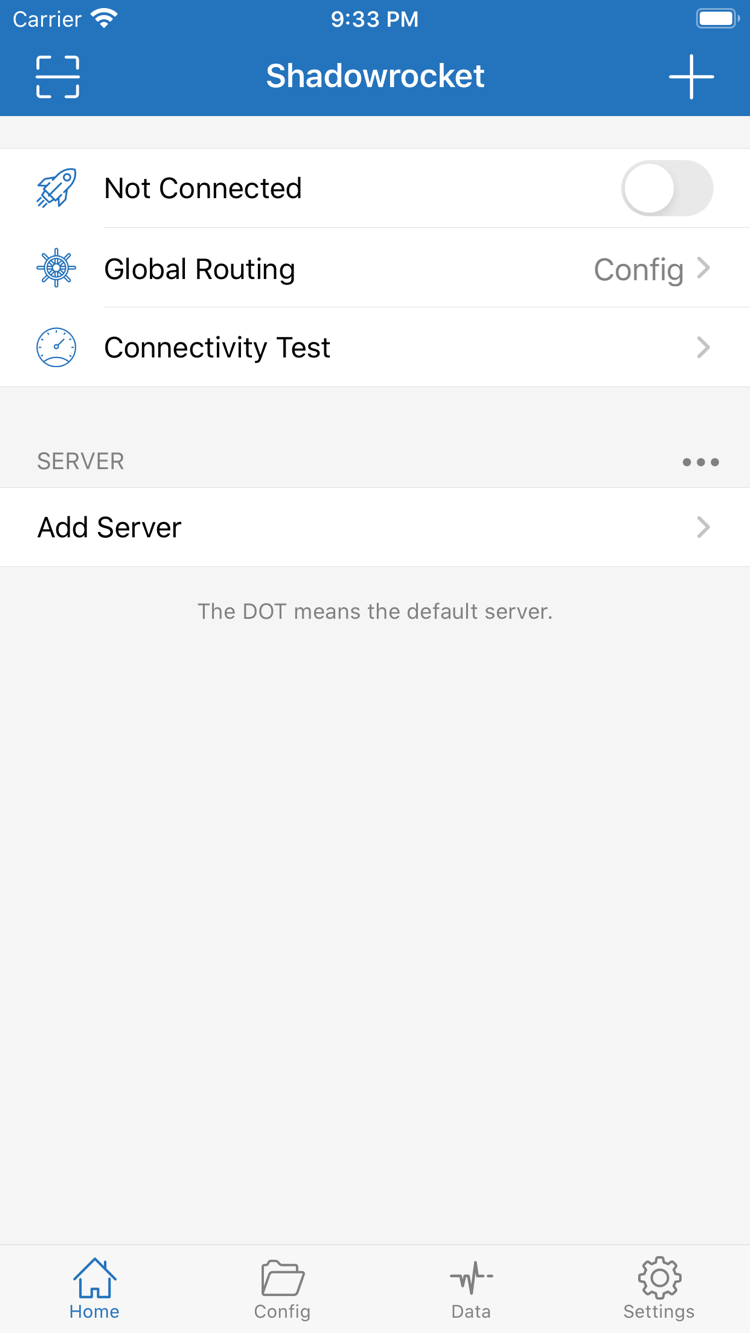
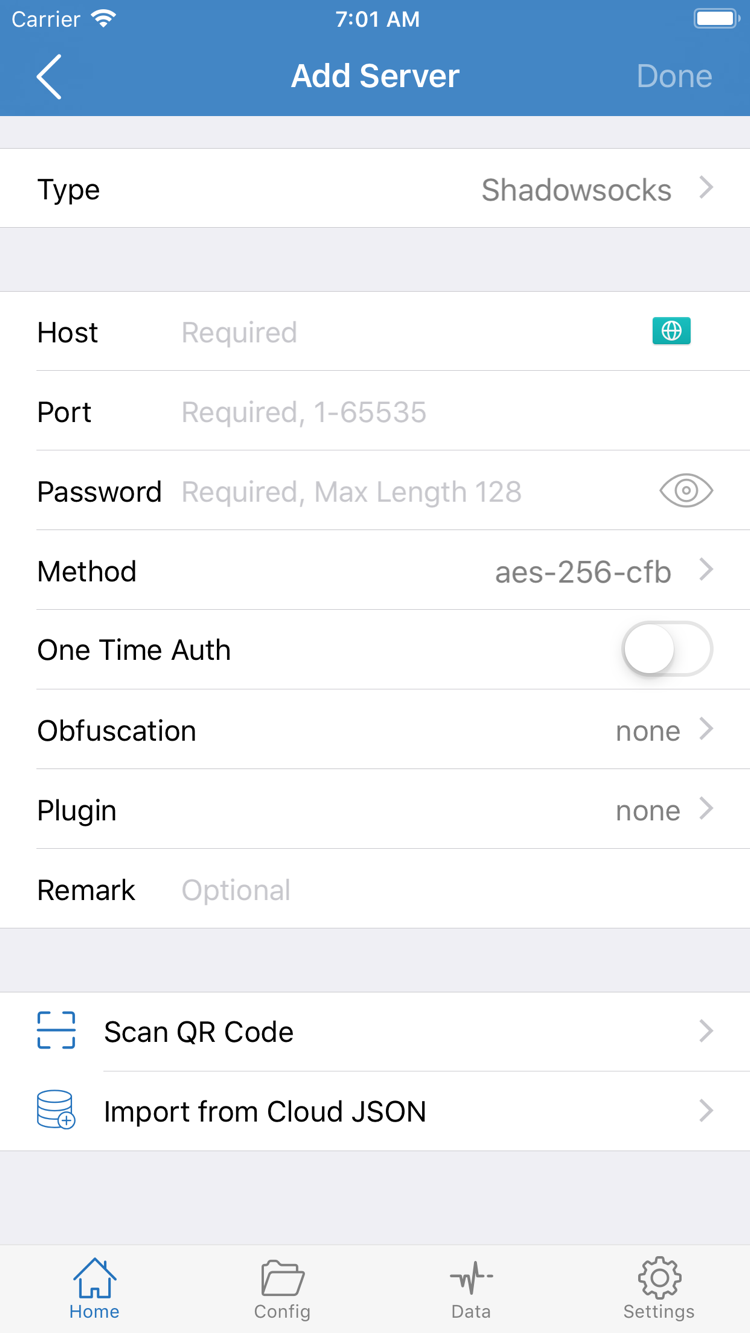
Both images in this section are official App Store screenshots. The Home screenshot shows Not Connected, Global Routing, Connectivity Test, SERVER, and Add Server. The Add Server screenshot shows fields such as Type, Host, Port, Password, and Method. Use them to locate sections; a newly installed app won't necessarily show the same list contents.
The interface may vary with app updates or device size. Verify the app using the three App Store details rather than drawing conclusions from a button's position. It's normal for the list to be empty after installation, before you add your own details. Don't copy the server settings in the screenshots. Make sure you have your own subscription or server information before adding anything.
iPhone: purchase, first launch, and VPN setup
Open the App Store product page on your iPhone and verify the listing before confirming your purchase at the displayed price. Check the compatibility details for the system requirements shown on the App Store page and confirm that your iPhone meets them. Don't assume your device is compatible just because the app works on another device, or rely on old screenshots in a guide for current system requirements.
The system handles purchase confirmation and device verification. When the download finishes, open Shadowrocket from your Home Screen. If the app icon appears but shows a waiting or progress indicator, the download is not complete. Check the App Store status, network connection, and available storage instead of repeatedly deleting the icon and trying to buy the app again. Follow any prompts to verify your account or payment details.
What does allowing a VPN configuration mean?
When you connect for the first time, the system may ask to allow a VPN configuration. This lets Shadowrocket handle network requests from your device using the selected connection method. It is not another app purchase and does not add server details automatically. Make sure the request comes from the Shadowrocket app you're using, then follow the system prompts to grant permission. You may need to authenticate with your device passcode or biometrics.
If you don't allow it right away, follow the app and system prompts when you're ready to connect. If you haven't imported valid connection details, the connection switch doesn't need to stay on to confirm the app installed successfully. App installation, VPN permission, server reachability, and access to the destination website are four separate things to check.
What to do first after installation
First, prepare a subscription or server details you already have. Then follow the Shadowrocket setup guide to import them. Check the selected entry, choose Config, Proxy, or Direct in Global Routing as needed, and then try connecting. Connectivity Test helps check reachability; it does not verify an App Store purchase. If the test fails, troubleshoot the network and settings rather than buying the app again.
iPad: use your purchase history and check the configuration separately
A single purchase with the same Apple ID can let you get Shadowrocket on both iPhone and iPad, subject to the purchase terms and device compatibility shown on the App Store listing. First check the account under Media & Purchases on your iPad, then look for the app in the App Store or your purchased items. Being signed in to the same iCloud account alone does not confirm that the store is using the original purchasing account.
The iPad's larger display may change list widths, spacing, and the placement of some controls, but you can still find features by their interface labels, such as Home, Config, and Global Routing. Don't change unrelated settings just to make the screen look exactly like an iPhone screenshot. Always check the App Store listing for system requirements, and verify compatibility on this iPad before buying.
Purchase rights and app data are separate. Don't assume that subscriptions, server entries, or configurations available on your iPhone have also synced to your iPad. After first opening the app, check which items are present. If you need to import them again, use information you've saved yourself and verify the selected entry and configuration. Don't assume both devices have the same Global Routing mode.
To compare devices, start with the same network and configuration, then test the iPhone and iPad separately. If only the iPad fails, check its VPN permission, network, and imported details. If both fail, check the subscription or server information they share. This helps distinguish a device-specific issue from a shared configuration problem and avoids losing troubleshooting clues through repeated reinstalls.
Purchase availability on Mac, Apple TV, and Apple Vision
The compatibility section of the same App Store listing includes Mac, Apple TV, and Apple Vision. Check the listing for supported devices, system requirements, and whether the purchase is universal. The app is still obtained from the same product page linked here. The first-launch steps on this page focus on iPhone and iPad; authorization, data transfer, and interface layout may differ on other devices.
Replacing a device or reinstalling: restore the purchase first, then your data
Using the Apple ID that made the original purchase, find Shadowrocket under App Store → Account → Purchased and download it again. You usually won't need to pay again. Depending on your system, the section may be called “Apps” or “My Apps”; use the labels shown on your account page. A cloud icon usually means you can download the app from your purchase history without buying it again.
- Check the original purchasing account. Check the account under Media & Purchases and compare it with your saved purchase records. Restoring a device backup does not guarantee that the store is signed in to the same account you used before.
- Find the app in your purchased items. Search for Shadowrocket and open its product page to verify the developer and app ID again. If it doesn't appear in the list, check whether the purchase is hidden or whether you're signed in to a different account.
- Import your own data again. After installation, check the contents of Home and Config. Restore your own subscriptions, server details, and configurations as needed, then complete system authorization and test the connection.
If the purchased app still shows a price, don't confirm payment immediately. Check whether you're using a different purchasing account, changed regions, hid the purchase, or whether the store hasn't refreshed. Keep your purchase record and the current message; these can help when contacting App Store account support to confirm your purchase. The in-app connection switch cannot fix App Store purchase history.
Restoring the app does not restore its configuration
The App Store restores your right to download the app. Subscription URLs, server settings, rule files, and user-adjusted preferences are separate data. If your old device still works, make sure this information is saved before erasing or resetting it. Subscription URLs may contain access credentials, so redact sensitive parts when troubleshooting and never show them in full in public screenshots.
Once the new device is ready, import your data and check the fields before selecting a configuration. Change one setting at a time so you can confirm that the restore worked. If the app opens but you can't access the internet, follow the troubleshooting guide to check the symptoms. Reinstalling the app repeatedly usually won't fix incorrect settings or an unreachable server.
For Family Sharing, check whether the current App Store listing and family purchase settings support it, and whether the account meets the requirements. Membership in a family group does not mean every device and account automatically gets the same purchase rights. Nor should you assume another family member's connection configuration will be restored with the app.
Pricing and one-time purchase: app purchase and connection service are separate
The US storefront price for Shadowrocket is $2.99, a one-time purchase. Other storefronts show local currency; the final price is the amount displayed on the App Store page when you confirm your purchase. The app is not billed as a monthly subscription. Check the price, availability, and purchase terms before paying; don't rely on old screenshots or search snippets for the current price.
You'll still need connection details after your purchase. Subscription validity, server reachability, and service expiration are managed separately from your App Store purchase. If the app opens but the list is empty, that doesn't mean the purchase failed. If an existing entry times out, that doesn't mean you need to buy the app again.
App updates are delivered through the App Store. You can enable automatic updates in your settings or check the account's updates list; see the store's release notes for details. Save your existing information before making important configuration changes. If something goes wrong after an update, note what happened and check permissions, the selected configuration, and your network before changing multiple settings at once.
This official manual covers purchases, restoration, importing, and troubleshooting separately. After verifying your purchase on this page, continue to the setup guide. To understand the differences between Config, Proxy, and Direct, see the glossary. For purchases, follow the App Store and account prompts; for connections, use your own information and test the actual connection.
App Store download and purchase FAQs
Why can't I find Shadowrocket in the App Store?
Shadowrocket is not available on the mainland China App Store. First check the country or region for the Apple ID used with Media & Purchases. Availability on the product page depends on the current storefront. To view or change your account region, go to Settings → Apple ID → Media & Purchases → View Account → Country/Region. Complete any requirements shown before changing regions.
The product page opens, but I can't buy or download the app. What should I check?
Note the exact App Store message, then check your account region, payment method, device compatibility, and available storage. If the download remains pending, check your network and account sign-in status. If the app is marked incompatible, refer to the system requirements shown on the App Store listing. A purchase or download issue is not an in-app connection problem.
Do I have to pay again when I replace my device or reinstall Shadowrocket?
Using the Apple ID that made the original purchase, find Shadowrocket under App Store → Account → Purchased and download it again. You usually won't need to pay again. If a price still appears, check the purchasing account and purchase history. After restoring the app, import your own subscriptions, server details, and configurations.
If I bought Shadowrocket on iPhone, can I install it on iPad too?
You can use the purchase history for the same Apple ID to get Shadowrocket on iPhone and iPad. Check the App Store listing for purchase availability and device compatibility. Make sure the iPad uses the original purchasing account for Media & Purchases. Installing the app does not automatically sync all subscriptions and configurations.
Can I install Shadowrocket on Mac, Apple TV, or Apple Vision?
The compatibility section of the same App Store listing includes Mac, Apple TV, and Apple Vision. Check the listing for system requirements, device compatibility, and whether the purchase is universal. The app is available through the same App Store product page.
How do I follow the guide if the app is in English?
This official manual keeps English interface labels such as Home, Global Routing, Config, Add Server, and Connectivity Test so you can match them directly. Use the official screenshots on this page to identify each section, then follow the setup guide to import your details and connect. Interface language alone does not verify that an app is genuine.